What you will learn today
Today you will learn how to:
- install MCP Explorer with Docker or Podman and persist its state correctly;
- connect a Streamable HTTP MCP server and configure an LLM;
- use the ten capabilities I think deliver the most value;
- move from visual exploration to repeatable workflow, load, security, and regression tests;
- use the
mcp-httpCLI despite a current packaging caveat; and - recognise the security boundaries that still belong to you.
Why is this important? MCP makes tools, prompts, and resources available to AI applications through a shared protocol, but a successful handshake proves very little. We still need to see schemas, inspect tool inputs and outputs, exercise human approval paths, test failure modes, observe latency, and prevent credentials from leaking into logs or history. MCP Explorer puts those activities in one workbench, shortening the distance between “the server connected” and “I trust how it behaves.”
What MCP Explorer is
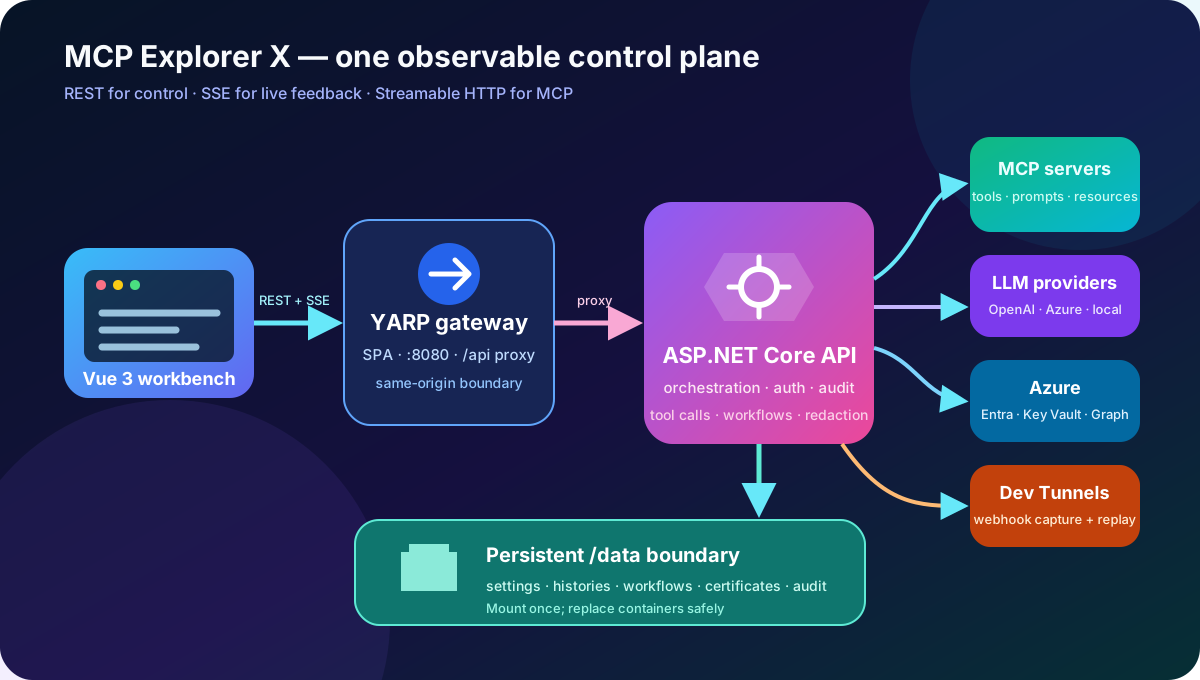
MCP Explorer is a Vue 4 single-page application backed by an ASP.NET Core 10 API. A YARP gateway serves the UI and proxies API traffic. The backend talks to MCP servers over Streamable HTTP, streams events to the browser, persists state to local JSON-based storage, and can integrate with LLM providers, Azure, and Microsoft Dev Tunnels. The default single-container deployment packages the gateway, frontend, API, and devtunnel CLI together.
This is a clean gateway pattern: the browser has one origin, the gateway hides internal service topology, and the API acts as an anti-corruption layer between UI concerns and MCP/LLM/Azure integrations. It is deliberately a developer workbench rather than a production MCP gateway.
Install MCP Explorer
Prerequisites
You need:
- Docker 20.10 or later, or Podman 5 or later;
- a browser; and
- an MCP server reachable over Streamable HTTP.
The optional CLI requires the .NET 10 SDK. Azure-powered connection and certificate features also require an authenticated Azure identity with only the permissions needed for the operation.
The tested single-container installation
The following command works on macOS and Linux. It binds only to the local machine, persists application state in a named Docker volume, and gives the container a stable name:
docker pull garrardkitchen/mcp-explorer-x:latest

docker run -d \
  --name mcp-explorer-x \
  --restart unless-stopped \
  --add-host host.docker.internal:host-gateway \
  -p 127.0.0.1:8091:8080 \
  -v mcp-explorer-data:/data \
  -e PREFERENCES__StoragePath=/data/settings.json \
  -e ASPNETCORE_ENVIRONMENT=Production \
  garrardkitchen/mcp-explorer-x:latest
Open http://localhost:8091.
Why these flags matter:
| Choice | Reason |
|---|---|
127.0.0.1:8091:8080 | Keeps the workbench off your LAN by default. Deliberately change the bind address only if other machines must reach it. |
mcp-explorer-data:/data | Keeps connections, models, workflows, histories, certificates, and protection material outside the disposable container. |
PREFERENCES__StoragePath=/data/settings.json | Aligns the application’s storage path with the mounted volume. |
Production | Avoids development error detail and Swagger exposure. |
--restart unless-stopped | Restarts the workbench after Docker or host restarts. |
--add-host host.docker.internal:host-gateway | Makes host-run MCP servers reachable by the same hostname on Docker Engine and Docker Desktop. |
The dedicated Quick Start currently mixes a /root/.local/share/McpExplorer mount with /data/settings.json; that would place the configured settings file outside the mounted path. The command above uses one consistent /data boundary. It also uses the real Docker Hub image rather than the placeholder GHCR image that still appears on parts of the site.
Windows via WSL and Podman
The Windows deployment used for this guide runs from a WSL bash shell with Podman. It stores Explorer data in the WSL home directory and mounts the Windows Azure CLI profile through /mnt/c.
Prefer Podman’s normal isolated network with an explicit localhost port mapping:
dataRoot="$HOME/.config/McpExplorerX-docker"
WINDOWS_AZURE_CONFIG="/mnt/c/Users/kitcheng/.azure"

mkdir -p "$dataRoot"

podman run --rm -it \
  -p 127.0.0.1:8091:8080 \
  -v "${dataRoot}:/root/.local/share/McpExplorer" \
  -v "${WINDOWS_AZURE_CONFIG}:/root/.azure:ro" \
  -e AZURE_CONFIG_DIR=/root/.azure \
  -e HOST_DATA_PATH="$dataRoot" \
  -e MCP_DATA_PATH="$dataRoot" \
  -e HOST_AZURE_CONFIG_DIR="${WINDOWS_AZURE_CONFIG}" \
  -e ASPNETCORE_ENVIRONMENT=Production \
  garrardkitchen/mcp-explorer-x:latest
Open http://localhost:8091. The /root/.local/share/McpExplorer target is intentional here: without PREFERENCES__StoragePath, that is the application’s default Linux data directory. HOST_DATA_PATH tells Explorer which WSL host path to place in copied mcp-http --data-path commands. MCP_DATA_PATH and HOST_AZURE_CONFIG_DIR are primarily Compose interpolation variables; they are retained here as useful deployment metadata, while the bind mounts and AZURE_CONFIG_DIR perform the direct podman run wiring.
If an MCP server is listening only on the WSL host’s loopback interface and cannot be reached through host.containers.internal, use host networking instead:
dataRoot="$HOME/.config/McpExplorerX-docker"
WINDOWS_AZURE_CONFIG="/mnt/c/Users/kitcheng/.azure"

mkdir -p "$dataRoot"

podman run --rm -it \
  --network host \
  -v "${dataRoot}:/root/.local/share/McpExplorer" \
  -v "${WINDOWS_AZURE_CONFIG}:/root/.azure:ro" \
  -e AZURE_CONFIG_DIR=/root/.azure \
  -e HOST_DATA_PATH="$dataRoot" \
  -e MCP_DATA_PATH="$dataRoot" \
  -e HOST_AZURE_CONFIG_DIR="${WINDOWS_AZURE_CONFIG}" \
  -e ASPNETCORE_ENVIRONMENT=Production \
  -e DOTNET_RUNNING_IN_CONTAINER=false \
  garrardkitchen/mcp-explorer-x:latest
With --network host, do not also specify -p 8091:8080: published ports apply to containers with their own network namespace, while host mode shares the WSL host network. Open http://localhost:8080 for this variant. Host networking also gives the container broader access to services listening on the WSL host, so use it only when the isolated mode cannot meet the connectivity requirement. Podman normally provides host.containers.internal and host.docker.internal; its exact Windows/WSL behavior is documented in the official podman run reference.
The Azure profile is mounted read-only deliberately. This prevents the container from changing the Windows Azure CLI cache, but it can also prevent token-cache refresh writes. Refresh the login from Windows/WSL with az login when needed and retry or restart Explorer. If unattended refresh inside the container is required, change the mount to read-write only after accepting the larger credential-write trust boundary.
Optional Azure integration
For local development, MCP Explorer can reuse your Azure CLI session. Treat the following as an alternative installation command. If you already ran the basic installation, remove only its disposable container first—the named data volume remains intact:
docker stop mcp-explorer-x
docker rm mcp-explorer-x
Then recreate it with the Azure mount:
docker run -d \
  --name mcp-explorer-x \
  --restart unless-stopped \
  --add-host host.docker.internal:host-gateway \
  -p 127.0.0.1:8091:8080 \
  -v mcp-explorer-data:/data \
  -v "$HOME/.azure:/root/.azure" \
  -e PREFERENCES__StoragePath=/data/settings.json \
  -e AZURE_CONFIG_DIR=/root/.azure \
  -e ASPNETCORE_ENVIRONMENT=Production \
  garrardkitchen/mcp-explorer-x:latest
This Docker variant uses a writable Azure config mount so the Azure CLI can refresh cached tokens inside the container. That also means the container can change valuable credential files, so use the published image only in a trusted local environment. The Windows/Podman variant above intentionally chooses a read-only mount and refreshes the host login instead. In an Azure-hosted deployment, prefer DefaultAzureCredential with a least-privilege managed identity rather than copying a developer login into the workload.
First smoke test
Do not stop at “the page opened.” Check both the gateway and API:
curl -fsS http://localhost:8091/ > /dev/null &&
  echo "UI: reachable"

curl -fsS http://localhost:8091/api/v1/system/info

docker logs --tail 100 mcp-explorer-x
For the foreground Windows/Podman commands, startup logs are already in the active terminal; substitute podman for docker in lifecycle commands.
A healthy API returns JSON similar to:
{
  "apiVersion": "1.0.0",
  "dotnetVersion": ".NET 10.0.9",
  "dataPath": "/data"
}
The dataPath value is a useful persistence assertion: if it is not /data, your runtime and volume configuration disagree.
Connect your first MCP server
- Open Connections and select New Connection.
- Give the connection a clear environment-aware name, such as
Weather API — local. - Enter the Streamable HTTP endpoint.
- Add authentication only if the server requires it.
- Save the connection and turn on its connection toggle.
- Confirm the health indicator becomes green, then open Tools.
If the MCP server runs directly on your host while Explorer runs in Docker, use an endpoint such as:
http://host.docker.internal:3000/mcpThe installation commands above include --add-host host.docker.internal:host-gateway, so the hostname is created when the container starts rather than being retrofitted later.
Authentication options include custom headers, OAuth, and Azure client credentials. For a static header, choose the correct Raw, Bearer, or Basic mode so a scheme is not added twice. For Azure, prefer a Key Vault reference or certificate over storing a client secret inline. Give each connection its own least-privilege identity and scope.
To enable Chat, open Models, add an OpenAI, Azure OpenAI, Azure AI Foundry, Ollama, LM Studio, or other OpenAI-compatible endpoint, then select that model in Chat. Treat model access and MCP tool access as separate permissions: a model should see only the connections required for that conversation.
The ten capabilities I would use first
1. Schema-driven tool exploration
The Tools page turns each tool’s JSON Schema into a native form: strings, numbers, booleans, enums, arrays, objects, and required-field validation. Press Ctrl+Enter to run a tool, then inspect the result as a searchable JSON tree.
The unusually useful part is the book icon. It generates Markdown reference documentation for one tool or every filtered tool. That creates a fast contract-review loop: discover the server, inspect its schemas, execute examples, and export an API reference without hand-copying definitions.
Test it by choosing one harmless read-only tool, verifying every required field is marked, running a valid request, then deliberately submitting a missing or invalid value. The UI and server should fail clearly and consistently.
2. Streaming chat with visible automatic tool calls
Chat streams LLM output over SSE and lets the model invoke tools from only the connections you selected. Tool names, inputs, outputs, thinking time, and token use remain visible inline.
This is an observable agent loop rather than a black-box chat:
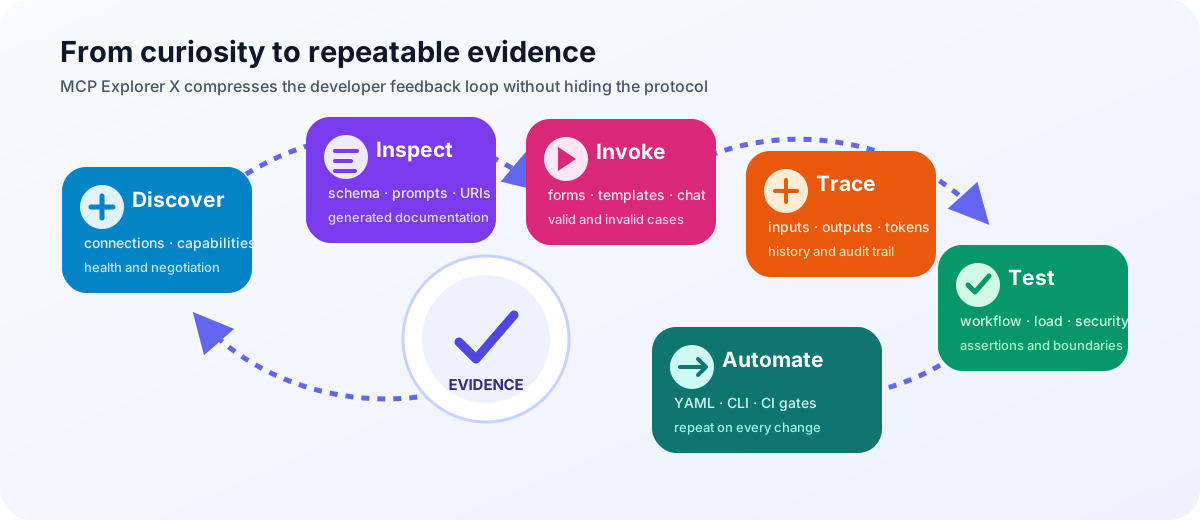
Test it with a question that cannot be answered from the model alone but can be answered by one connected tool. Confirm the correct tool was selected, inspect its arguments, compare its raw result with the final answer, and repeat with the connection deselected. The second run should not retain accidental tool access.
3. Prompts that flow directly into an LLM or Chat
MCP prompts are reusable, parameterised message templates. Explorer renders their arguments, executes them, and can send the result directly to an LLM or into a continuing Chat session.
This separates prompt ownership from model execution: the MCP server owns the reusable prompt contract, while the operator chooses the model at runtime. Test required and optional arguments, render the prompt without an LLM first, and inspect the exact messages before sending them to a paid or externally hosted model.
4. Dynamic resource templates
Resource templates turn URIs such as db:///{table}/{id} into forms, resolve the placeholders, and fetch the concrete resource. One template can safely expose a large address space without advertising every possible resource.
Test one known value, one missing value, and a boundary value. Check that placeholder encoding prevents a value from changing the intended URI structure. Favour read-only templates for early exploration.
5. Chained workflows and browser-based load tests
Workflows connect tools into repeatable pipelines. A parameter can be a fixed value, a runtime prompt, or output from a previous step. Every execution records duration and per-step input/output, and the same workflow can be run concurrently as a load test.
This is a pipeline pattern with explicit dataflow. Start with two read-only tools, pass step one’s result into step two, and assert that the downstream input is exactly what you expected. Then increase concurrency gradually while watching success rate, average duration, server CPU/memory, throttling, and downstream quotas. A load generator without server telemetry is only half a test.
6. Elicitations for human-in-the-loop control
An MCP tool can pause and ask for more information or confirmation. Explorer renders the elicitation from its schema, lets the user accept or decline, resumes the tool, and keeps an audit history.
This is the human-in-the-loop pattern that matters most for consequential actions. Test both Accept and Decline, allow an elicitation to time out if you configured a timeout, and verify that declining a destructive operation does not execute it. Never treat the dialog alone as authorisation; the server must enforce identity and permission again.
7. Data Guard across tools, prompts, and chat
Data Guard combines always-on regex detection, heuristic high-entropy detection, optional AI classification, custom sensitive fields, and explicit allowed fields. Detected values are masked in the UI and encrypted at rest.
Use synthetic secrets—not real ones—to test:
Authorization: Bearer test-only-token-0123456789
apiKey: sk-test-0123456789abcdefghijklmnop
connectionString: Server=example;User Id=test;Password=not-a-real-secret
Send them through a tool input, tool output, prompt argument, and chat message. Verify masking in the live UI, history, exports, and debug logs. Then test a known false positive before adding an allowed-field exception. AI detection can improve context awareness, but it also adds latency and may send candidate values to the configured model; make that privacy trade-off explicit.
8. Azure-aware authentication and certificate rotation
Explorer can browse Entra app registrations, reference client secrets by Key Vault name, generate a local certificate, upload only its public key to an app registration, test token acquisition, monitor expiry, and rotate certificates in a safe order.
The rotation workflow follows an expand-and-contract pattern:
- create the successor;
- upload it everywhere the old certificate is trusted;
- repoint all consumers;
- verify the new credential; and
- only then remove stale credentials.
That order prevents a partial failure from breaking a working connection. Test in a non-production app registration first, grant only the Graph and vault access required, verify token scope and expiry, and inspect the certificate audit log. A private key should never appear in Graph, logs, chat, or a plaintext export.
9. Signal Deck for webhook capture and replay
The Dev Tunnels Signal Deck creates public HTTPS callbacks, streams requests into a live timeline, archives their headers and bodies with redaction, and replays a captured event to a chosen target. Tool parameters named like webhookUrl or callbackUrl can be filled from a running tunnel.
This closes a frustrating webhook debugging gap. Send a signed synthetic event, verify its method/path/query/body, pause and replay the timeline, then replay to a disposable public test endpoint. Explorer blocks loopback, link-local, private IPv4 ranges, IPv6 ULA, and IPv6 link-local targets to reduce SSRF risk. Test those negative cases; do not assume the guard exists because the button says Replay.
10. CLI, YAML runbooks, and HTTP regression collections
The mcp-http CLI lists MCP tools/resources/prompts/templates, invokes tools, validates YAML runbooks, chains step outputs, evaluates assertions, schedules repetitions, and runs HTTP endpoint collections with schema comparisons. The browser remains excellent for discovery; YAML and exit codes make the result repeatable in CI.
A runbook can reference environment variables or Key Vault secrets and pass {{ steps.first.property }} into a later step. Use --validate-only in pull requests, assertions during execution, and a non-zero exit code as the pipeline gate. The HTTP Explorer complements MCP tests by detecting removed fields, type changes, drift, errors, and latency degradation in ordinary APIs that an MCP tool may depend on.
Install and test the CLI
The documentation says:
dotnet tool install -g Garrard.Mcp.Explorer.CliAs tested on 23 July 2026, NuGet.org returns “package not found.” Until the package is published, build it from the linked source:
git clone https://github.com/garrardkitchen/mcp-explorer-vue.git
cd mcp-explorer-vue

dotnet test mcp-explorer.slnx -c Release

dotnet pack src/Garrard.Mcp.Explorer.Cli/Garrard.Mcp.Explorer.Cli.csproj \
  -c Release \
  -o ./nupkg

dotnet tool install -g Garrard.Mcp.Explorer.Cli \
  --add-source ./nupkg

mcp-http --version
Pin the repository to a reviewed commit or release in automated builds; do not install mutable main blindly. The source at commit 6c47e22e3f8af35ef64ee273d649bb13c6c31580 packed CLI version 1.0.0, and both sample runbook types validated successfully:
mcp-http mcp runbook \
  --file samples/mcp/mslearn-assertions.yaml \
  --validate-only

mcp-http http runbook \
  --file samples/http/httpbin-assertions.yaml \
  --validate-only
A practical test strategy
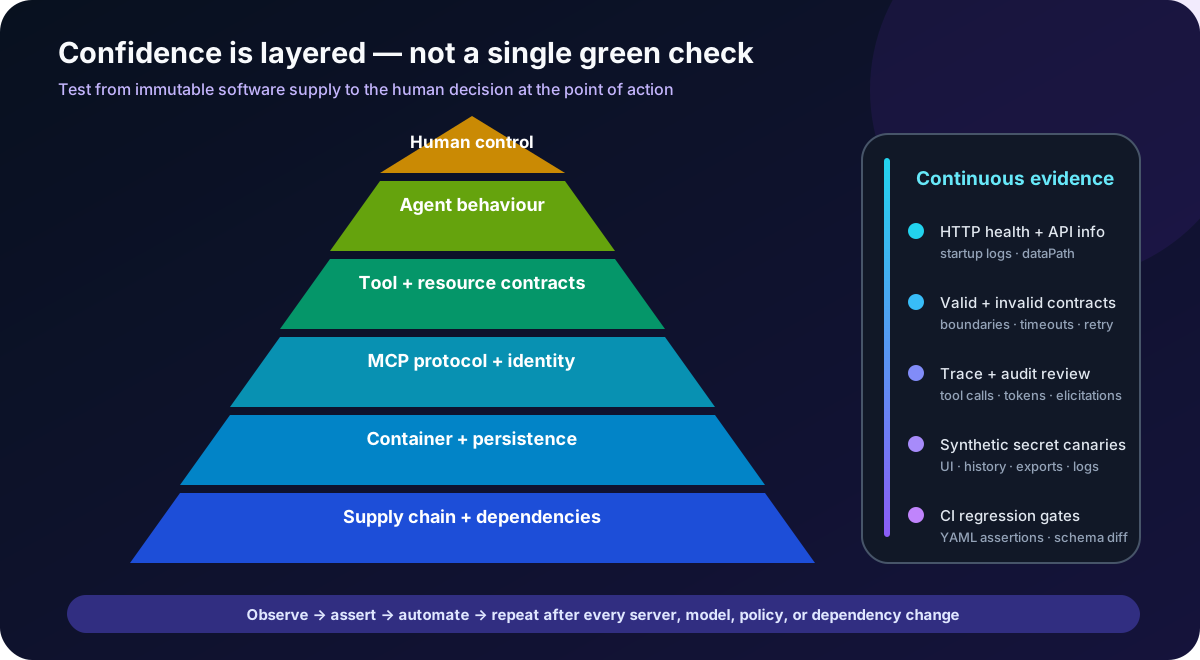
Use layers so failures remain diagnosable:
| Layer | What to prove | Suggested evidence |
|---|---|---|
| Container smoke | Gateway and API start | UI HTTP 200; /api/v1/system/info; clean startup logs |
| Persistence | State survives container replacement | dataPath is /data; create a harmless preference; replace the container; preference remains |
| MCP discovery | Negotiation and schemas work | Connection green; tools, prompts, resources, and templates listed |
| Functional contracts | Inputs and outputs are correct | Valid, invalid, missing, boundary, and timeout cases |
| Agent behaviour | Tool selection is justified | Tool trace matches the question; answer is grounded in raw output |
| Human control | Elicitation is enforceable | Accept, decline, timeout, and unauthorised-user cases |
| Data protection | Secrets do not leak | Synthetic canaries masked in UI, storage, exports, and logs |
| Resilience and load | Failure is bounded | Retry behaviour, concurrency ramp, latency percentiles, throttling |
| Regression | Changes are detected | YAML assertions and HTTP schema comparisons in CI |
| Supply chain | Dependencies are acceptable | Pinned source/image digest, vulnerability scan, provenance review |
For a minimal automated smoke check:
set -euo pipefail

curl -fsS http://localhost:8091/ > /dev/null

info="$(curl -fsS http://localhost:8091/api/v1/system/info)"
printf '%s' "$info" | jq -e '
  .apiVersion != null and
  .dotnetVersion != null and
  .dataPath == "/data"
' > /dev/null

echo "MCP Explorer smoke test passed"
For CI, start with the complete, passing MCP smoke runbook and HTTP smoke runbook included with this article:
mcp-http mcp runbook --file examples/mcp-smoke.yaml --validate-only
mcp-http http runbook --file examples/http-smoke.yaml --validate-only

mcp-http mcp runbook --file examples/mcp-smoke.yaml
mcp-http http runbook --file examples/http-smoke.yaml
These public examples prove the CLI and assertion path without requiring saved Explorer state. Fork them and replace the endpoint, tool, parameters, and assertions with your own contracts.
Collections are stateful: create MCP Dependencies under HTTP API Explorer → Collections, establish its baselines, and make the same protected Explorer data directory available to CI. Then point the CLI at that directory explicitly:
test -n "${MCP_EXPLORER_DATA_PATH:-}"

mcp-http --data-path "$MCP_EXPLORER_DATA_PATH" \
  http collection run \
  --name "MCP Dependencies" \
  --fail-on-breaking
Do not publish or cache the full data directory indiscriminately: it can contain connection definitions, encrypted credentials, certificate material, histories, and the local encryption key. Use a protected CI secret/file mechanism, limit access to the job that needs it, and prefer inline HTTP runbooks when a saved collection is unnecessary.
Keep test identities, endpoints, and quotas separate from production. Never put inline secrets in committed runbooks; resolve them from environment variables or Key Vault and redact pipeline output.
What the live verification found
I tested the current documentation and source rather than treating every example as executable:
garrardkitchen/mcp-explorer-x:latestpulled successfully on Apple Silicon.- The single-container UI returned HTTP 200.
GET /api/v1/system/inforeturned HTTP 200 with API1.0.0, .NET10.0.9, and the corrected/datapath.- The NuGet global-tool command failed because the CLI package is not currently on NuGet.org.
- Packing and installing CLI
1.0.0from source succeeded. - MCP and HTTP sample runbooks both passed
--validate-only. - The four .NET test projects passed 298 tests in Release configuration.
There is also a high-severity production-readiness concern: restore reported the transitive Microsoft.OpenApi 2.4.1 package against GHSA-v5pm-xwqc-g5wc in the API and API test projects. Run:
dotnet list mcp-explorer.slnx package \
  --vulnerable \
  --include-transitive
Resolve that advisory, rebuild the image, and rerun the complete test suite before treating a source deployment as production-ready. Passing tests do not cancel a known vulnerable dependency.
Operating and upgrading safely
Before upgrading, export encrypted application data from Settings, protect the passphrase separately, and record the image digest you are running. Then:
docker pull garrardkitchen/mcp-explorer-x:latest
docker stop mcp-explorer-x
docker rm mcp-explorer-x
Rerun the tested installation command. The named mcp-explorer-data volume remains intact. Re-run the smoke, persistence, connection, and security-canary tests after every upgrade. For repeatable environments, replace :latest with a reviewed immutable digest.
For the WSL/Podman variants, press Ctrl+C to stop the foreground container; --rm removes only the container, while the bind-mounted dataRoot remains. Run podman pull garrardkitchen/mcp-explorer-x:latest, restart with the chosen Podman command, and repeat the same verification checks.
MCP Explorer is most valuable when you treat it not as a colourful catalogue of tools, but as an observable bridge from discovery to evidence: schema to invocation, invocation to trace, trace to test, and test to automation.
If MCP lets an AI system reach beyond its model, then the defining question is no longer merely “Can the agent call the tool?”—it is “What evidence would make us comfortable letting it call the tool when nobody is watching?”